
Struggling with lag, stuttering, and the dreaded Packet Burst in Black Ops 6? This BO6 packet burst fix guide will show you how to stop bullets not registering, enemies teleporting, and micro-stutters ruining your matches.
If you’re a competitive player frustrated by sudden freezes, network spikes, or frame drops, you’re not alone — and the step-by-step solutions below will get your gameplay smooth and responsive again.
This issue has been frustrating competitive players, especially in ranked matches. The worst part?
You might have:
- Good internet
- Low ping
- High FPS
And still get packet bursts.
Let’s fix it properly, step by step.
What Is Packet Burst in Black Ops 6?
Packet burst happens when your game receives data from the server unevenly or in spikes instead of a smooth flow.
Even if your ping is 20–30ms, unstable packet delivery can cause:
- Micro stutters
- Lag spikes
- Delayed hit registration
- Frame drops
- Sudden freezing during gunfights
In fast-paced shooters like Black Ops 6, even 0.5 seconds of lag can cost you a match.
Quick Fix Checklist (Try These First)
Before going deep, try these fast solutions:
✔ Disable On-Demand Texture Streaming
✔ Lower VRAM Scale Target
✔ Use wired Ethernet instead of WiFi
✔ Restart your router
✔ Close background apps
✔ Update GPU drivers
✔ Limit FPS to your monitor refresh rate
If the issue continues, follow the detailed fixes below.
Best Setup to Prevent Packet Burst (Recommended Setup)
✔ Wired Ethernet connection
✔ 300 Mbps+ stable internet
✔ Router with QoS
✔ FPS capped
✔ Texture streaming OFF
✔ VRAM below 80%
✔ No background downloads
This setup minimizes packet burst in competitive matches.
How to Fix Packet Burst in BO6 (PC)
1. Turn Off On-Demand Texture Streaming (Most Important Fix)
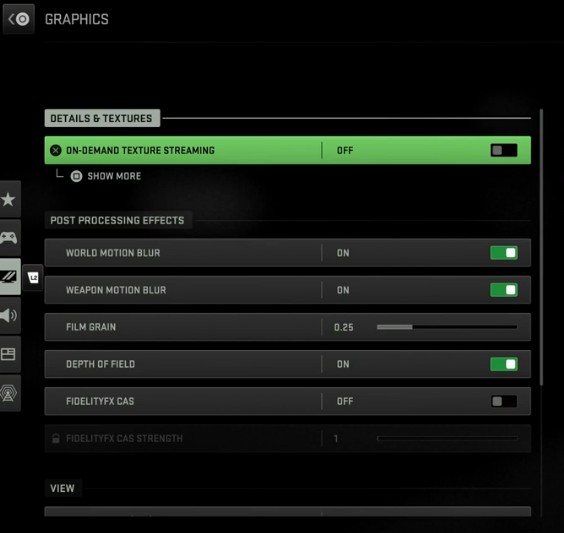
This feature downloads high-quality textures while you play. That increases network usage.
How to Disable:
- Open BO6
- Go to Settings
- Open Graphics
- Scroll to On-Demand Texture Streaming
- Turn it OFF
- Restart the game
This alone fixes packet bursts for many players.
2. Lower VRAM Scale Target
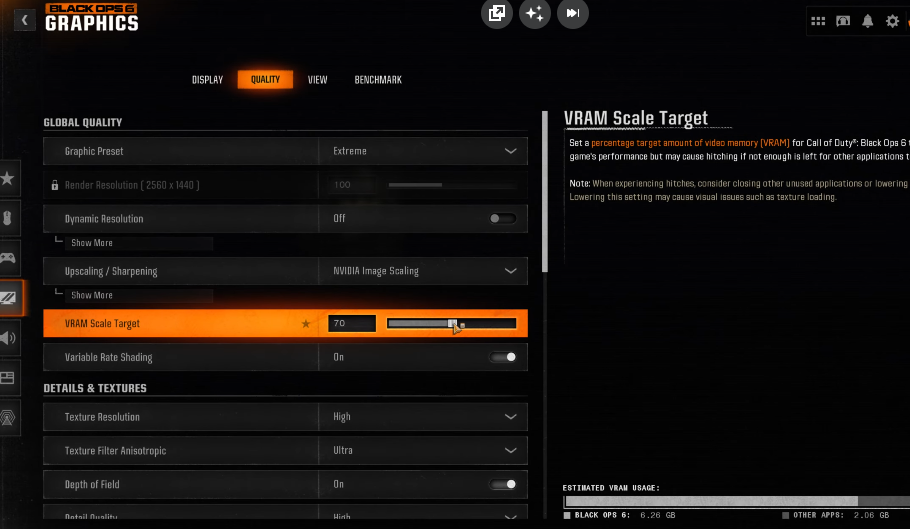
If VRAM usage is too high, the game struggles to process data smoothly.
Steps:
- Go to Graphics Settings
- Find VRAM Scale Target
- Set it between 70–80%
- Restart the game
3. Limit Your FPS
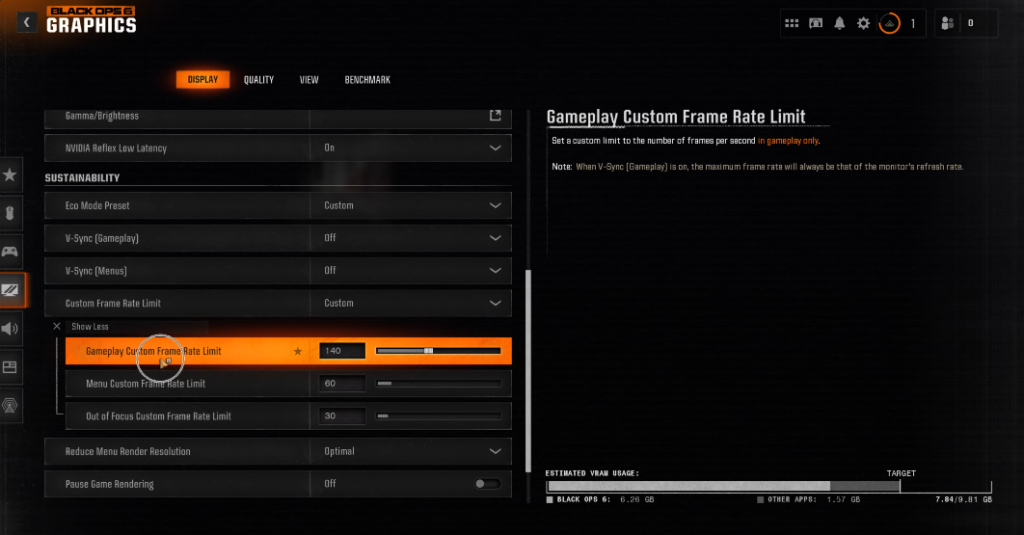
Title:
BO6 Packet Burst Step 3 – Limit FPS to Monitor Refresh Rate
Alt Text:
Step 3 to fix BO6 packet burst: limit FPS to match your monitor’s refresh rate on PC, PS5, and Xbox to reduce stuttering and lag
Uncapped FPS can cause instability.
Set your FPS limit equal to your monitor refresh rate.
Example:
- 144Hz monitor → set FPS cap to 144
- 120Hz → set to 120
This stabilizes frame delivery.
4. Update Your Graphics Drivers
Outdated drivers often cause packet bursts.
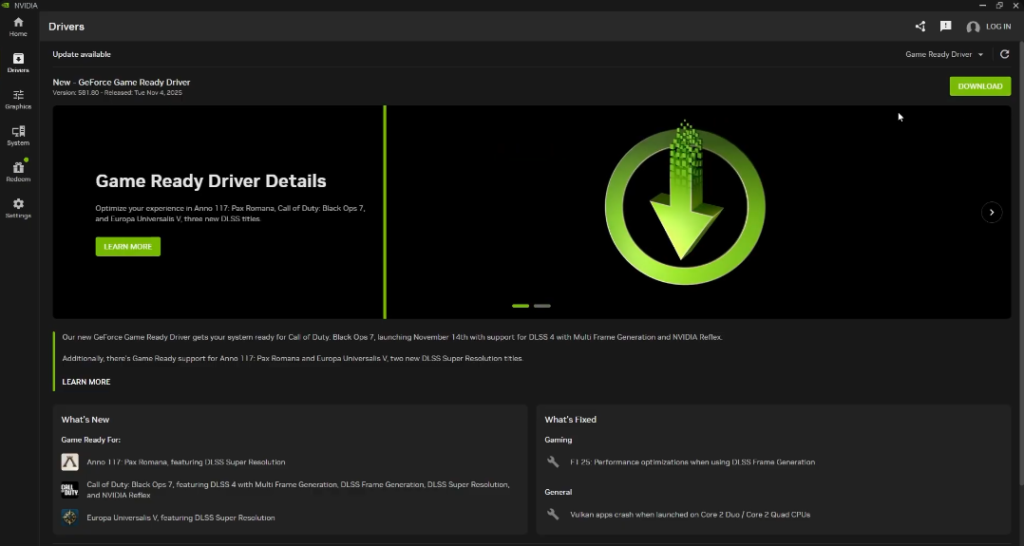
If you use NVIDIA:
Update from GeForce Experience.
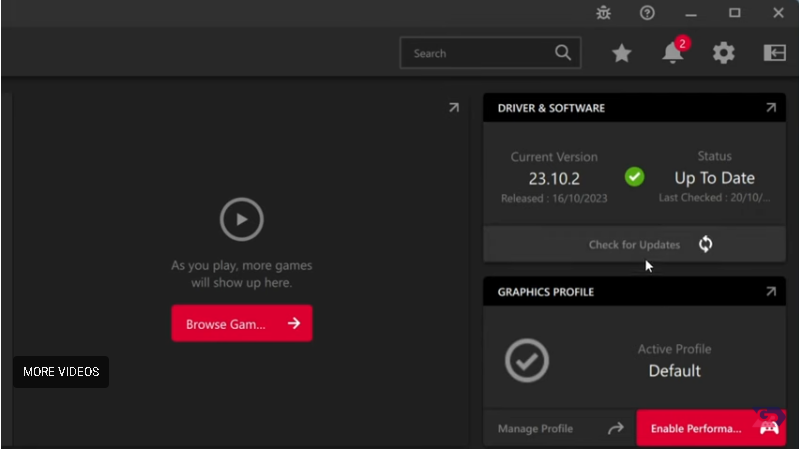
If you use AMD:
Update from Adrenalin Software.
Restart your PC after updating.
5. Close Background Apps
Close:
- Chrome
- Discord screen share
- Steam downloads
- Windows updates
- Torrent apps
Press:
CTRL + SHIFT + ESC
Open Task Manager
End unnecessary tasks.
Background applications can cause crashes and instability not just in Call of Duty but in other games as well, if you’re facing similar issues, check our detailed guide on Roblox keeps crashing on PC.
6. Use Ethernet Instead of WiFi
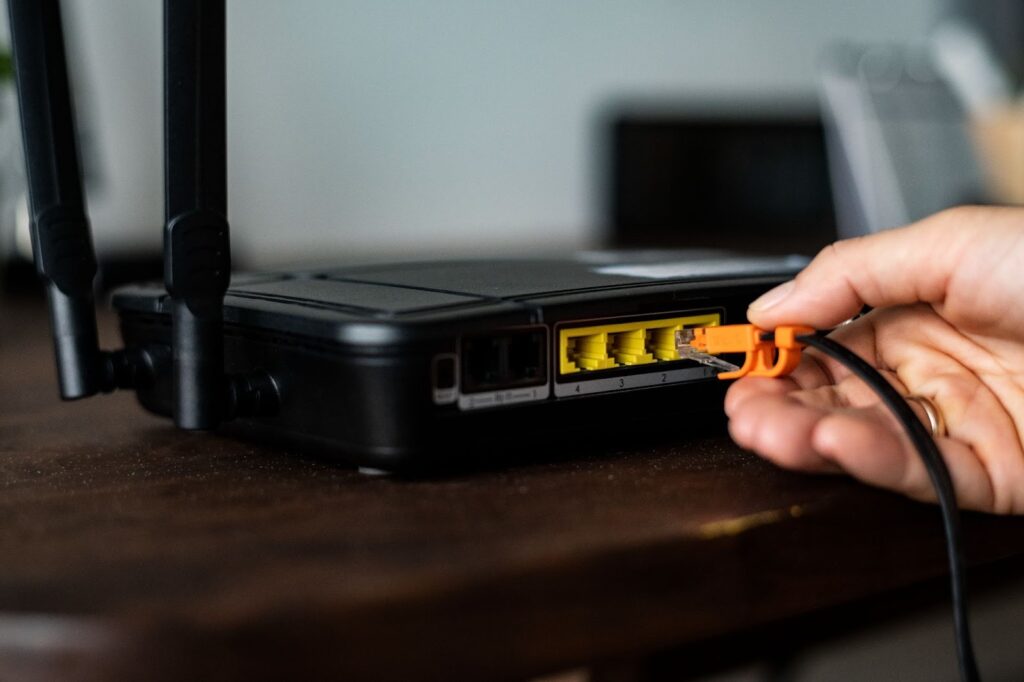
WiFi is unstable for competitive gaming.
Even strong WiFi can cause packet burst due to:
- Signal interference
- Router distance
- Shared bandwidth
Use a Cat6 Ethernet cable for best stability.
For more insights on gaming performance and upcoming improvements, see the 2026 Game Developers Conference.
How to Fix Packet Burst on PS5 & Xbox
1. Restart Router Properly
Not just turning it off for 5 seconds.
Do this:
- Turn router off
- Unplug power cable
- Wait 5 minutes
- Plug back in
- Wait full internet reconnect
This refreshes network routing.
If you still face network spikes, similar issues happen in other games like Fortnite then check our guide on Fortnite servers not responding.
2. Change DNS Settings
Primary: 8.8.8.8
Secondary: 8.8.4.4
This can improve server routing stability.
3. Disable Background Downloads
Check:
- Game updates
- System updates
- Other console downloads
Pause everything while playing.
4. Enable QoS in Router (Advanced Fix)
Login to your router:
192.168.1.1
Enable Quality of Service (QoS)
Prioritize your console or gaming PC.
This reduces network spikes.
Advanced Fix: Port Forwarding for BO6
Port forwarding can improve server communication and help open your NAT type for smoother online gameplay.
Common ports used by Call of Duty games (may vary slightly):
TCP: 3074
UDP: 3074, 3478-3479
Log into your router and forward these ports to your device’s local IP.
If you’re unsure how to set up QoS or port forwarding, follow your router’s official guide.
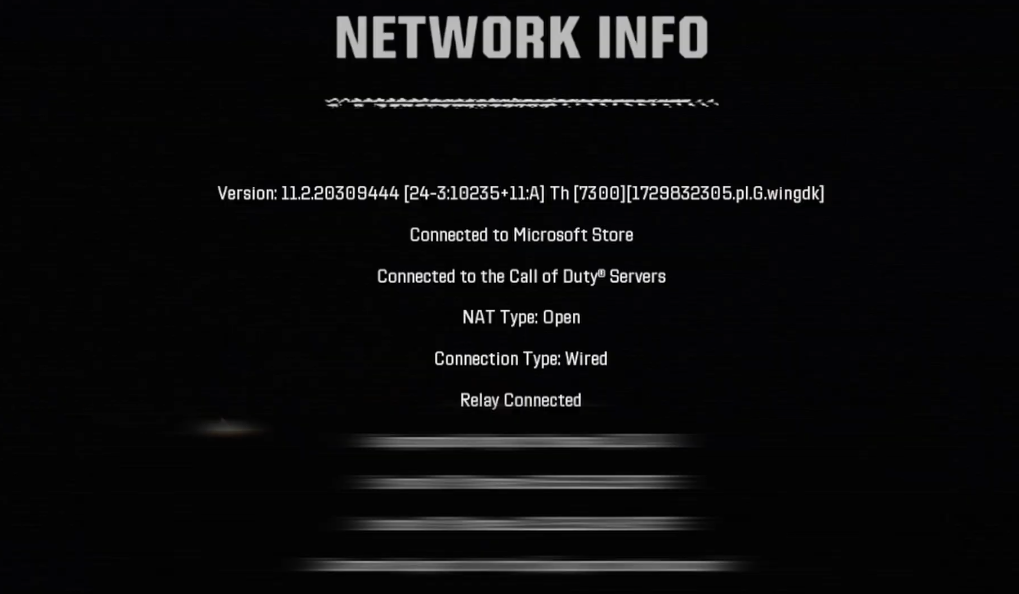
After forwarding the ports, check your NAT type in your console or PC network settings.
- Open NAT → best connection, no further action needed
- Moderate NAT → connection works but may still cause some matchmaking or lag issues. Forwarding the ports above usually helps improve it.
- Strict NAT → you may need to double-check port forwarding or enable UPnP on your router
Why Does Packet Burst Happen in Black Ops 6?
Main causes:
- Server overload
- High texture streaming usage
- WiFi instability
- Router bufferbloat
- ISP routing issues
- High VRAM usage
- Background downloads
Sometimes it’s server-side and cannot be fixed completely.
If servers are overloaded, you can check official Activision support for updates.
Does VPN Fix Packet Burst?
Sometimes yes, if your ISP routes traffic poorly.
But:
- Cheap VPNs increase ping
- Good gaming VPNs may stabilize routing
Performance issues like lag and packet instability aren’t limited to PC and console games, they also affect mobile titles, as explained in our BGMI review 2026.
Test before committing.
How to Know If It’s Server-Side?

If:
- Many players report packet burst same day
- Reddit complaints increase
- Your internet works fine in other games
Then it’s likely server-side.
You can only wait for patch updates.
Frequently Asked Questions
Is packet burst the same as high ping?
No. You can have low ping and still experience packet burst. It’s about data delivery stability, not just latency.
Can bad GPU cause packet burst?
Indirectly yes. If the GPU is overloaded, frame timing becomes unstable, which may show packet burst warnings.
Does packet burst mean my internet is bad?
Not always. It can be server routing, texture streaming, or WiFi instability.
Why does packet burst happen only in Black Ops 6?
New Call of Duty titles often use heavy texture streaming and large data packets, increasing network load.
Will reinstalling the game fix packet burst?
Rarely. This issue is usually network or settings related, not corrupted files.