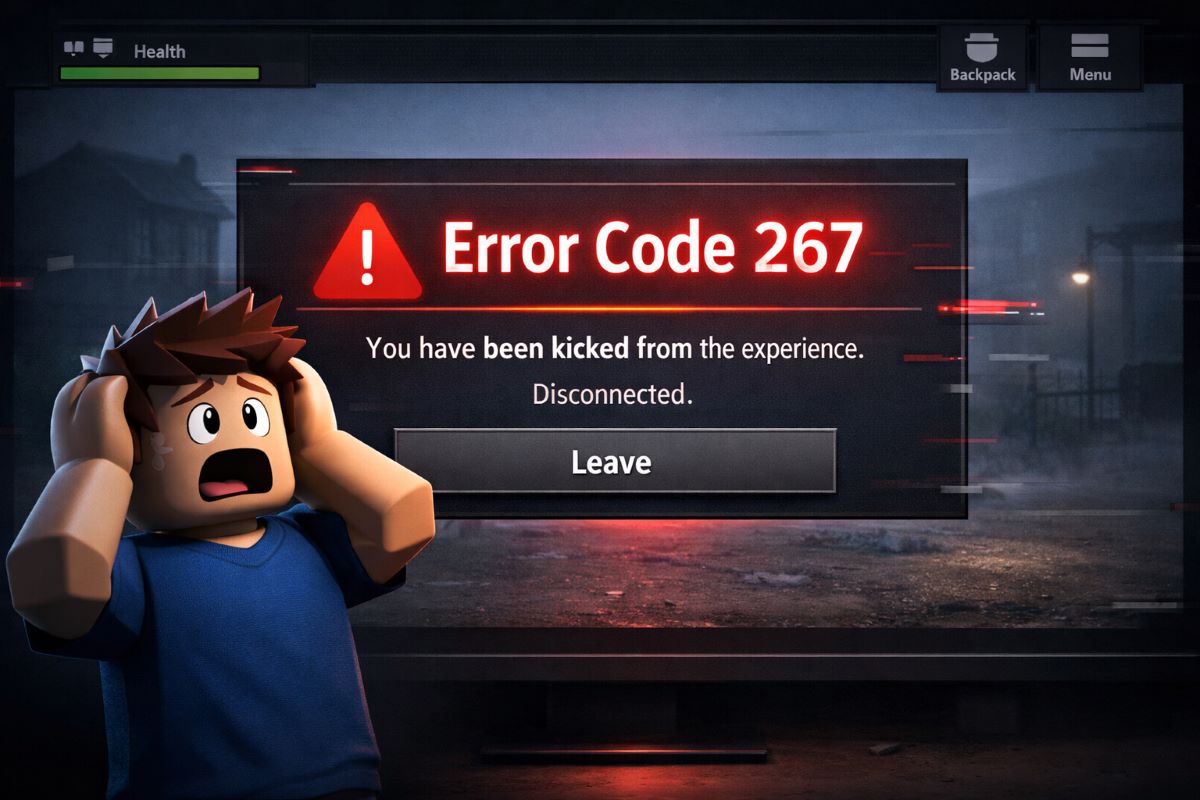

Are you trying to play Fortnite and seeing the dreaded “Fortnite servers not responding” message? You are not alone. Thousands of players face similar problems every day, especially during peak hours or after a new update. Server issues, network glitches, or device-specific errors can stop your game from running smoothly.
In this guide, we will break down why Fortnite servers stop working, how long downtime usually lasts, and most importantly, step-by-step fixes that actually get you back in the game. Whether you are on PC, PS4, or Xbox, these solutions will help you play without interruptions.
Table of Contents
Why Are Fortnite Servers Not Responding?
Understanding the cause of the problem is the first step to fixing it. Fortnite server errors can happen due to several reasons:
1. Server Maintenance or Downtime
Epic Games regularly updates Fortnite, especially when a new season or patch is released. During these times, servers may be temporarily unavailable. Check the official Fortnite server status page to see if downtime is planned.
2. Network Connection Issues

Sometimes the problem is on your end. Slow or unstable internet connections can cause Fortnite to appear offline or crash. Players with high latency or packet loss often see the “servers not responding” message.
3. Device-Specific Problems

Whether you are on PS4, Xbox, or PC, device-related errors like corrupted cache, outdated software, or insufficient resources can interfere with Fortnite.
4. Game Update Errors
Failing to update Fortnite to the latest version may cause connection errors. Always make sure your game is fully updated before playing.
How to Check Fortnite Server Status
Before troubleshooting your device or network, confirm if the problem is widespread:
- Visit the Epic Games server status page: https://status.epicgames.com
- Use third-party monitoring tools like DownDetector to see global reports
- Check Fortnite social media accounts for announcements
This step saves time and prevents unnecessary fixes if the servers are actually down.
Top 5 Fixes for Fortnite Servers Not Responding
Here are the most effective solutions to get back in the game quickly:
1. Restart Your Game and Device
This simple step solves a surprising number of issues. Close Fortnite completely, restart your PC, console, or mobile device, and try reconnecting.
2. Check Your Internet Connection

- Use a wired connection instead of Wi-Fi if possible
- Restart your router to refresh your connection
- Test your ping and ensure you have a stable network
3. Update Fortnite
Always make sure you have the latest version installed. Updates often fix bugs causing crashes or server disconnections.
4. Clear Cache on Your Device
- On PC: Delete temporary files or clear the Epic Games launcher cache
- On PS4/Xbox: Power cycle the console by turning it off, unplugging for 30 seconds, and restarting
5. Reinstall Fortnite (Last Resort)
If nothing works, uninstall and reinstall Fortnite. This fixes corrupted files and ensures a fresh installation.
Common Fortnite Crashes and How to Solve Them
Many players report the following issues:
- Fortnite keeps crashing on PC: Often due to outdated graphics drivers or insufficient system resources. Update your drivers and close background applications.
- Fortnite PS4 not working: Could be caused by server errors, corrupted game data, or network settings. Clear cache and ensure your console system software is updated.
- Why does Fortnite keep crashing?: It is often a combination of game files, network instability, and device performance. The fixes above usually solve most cases.
How Long Is Fortnite Downtime Today?
Fortnite downtime can vary. During updates or maintenance, servers may be down for a few hours. You can check:
- Epic Games Server Status for official updates
- Community forums and social media for real-time reports
If downtime is scheduled, you can use this time to prepare strategies or watch gameplay tips online.

FAQ – Fortnite Servers Not Responding
Q1: Why are my Fortnite servers not responding?
Fortnite servers may not respond due to scheduled maintenance, network issues, or device-specific errors. Check the official Epic Games server status page to confirm if servers are down.
Q2: How long is Fortnite downtime?
Downtime usually lasts 1–3 hours for updates or maintenance, but can vary depending on the patch size. You can check live server updates here.
Q3: Why does Fortnite keep crashing on PC?
Crashes often happen due to outdated graphics drivers, insufficient system resources, or background apps consuming RAM. Update drivers and close unnecessary programs.
Q4: How can I fix Fortnite crashing on PS4?
1. Clear the console cache
2. Update system software
3. Restart the PS4
4. If needed, reinstall Fortnite
Q5: Will restarting my router help Fortnite servers not responding?
Yes. A stable internet connection is crucial. Restarting your router refreshes your connection and can fix network-related server errors.
Q6: How to check when Fortnite servers are back up?
Check the Epic Games server status page, social media announcements, or third-party tools like DownDetector for real-time reports.
Q7: What should I do if Fortnite is offline but my internet is fine?
If your connection is stable but Fortnite is offline:
1. Confirm server status online
2. Try logging in from a different device
3. Wait for the maintenance to finish
Pro Tips to Avoid Future Server Problems
- Keep Fortnite updated regularly
- Use a wired internet connection for stable gameplay
- Follow Epic Games’ official channels for downtime alerts
- Clear cache monthly to prevent corrupted files
- Optimize your device performance before playing
Conclusion
Fortnite server issues are frustrating, but most problems can be solved quickly by checking server status, updating your game, and following simple fixes. Remember to maintain a stable internet connection and keep your device in optimal condition. With these steps, you can reduce downtime and enjoy uninterrupted gameplay.
By following this guide, you can say goodbye to “servers not responding” messages and get back into Fortnite faster than ever.