





At Scrolllers, we cover live-service game problems the same way we cover patches and updates: we check the official source first, then we focus on the fixes players can safely test at home. If you are dealing with Fortnite Matchmaking Error #1, #2, or #3, this guide explains what each code means, what usually causes it, and the steps most likely to get you back into a match quickly.
Fortnite Matchmaking Error usually looks scary, but the fix is often simple. In most cases, Fortnite Matchmaking Error #1, #2, or #3 happens because Epic is doing maintenance, the servers are overloaded, or your network cannot complete the handshake with Fortnite services. Epic’s official support page confirms that server maintenance and connection issues are the main causes.
Why you can trust this Scrolllers.net guide
The Scrolllers gaming team regularly tracks Fortnite downtime, matchmaking issues, patch-day outages, login failures, and competitive playlist problems. For this guide, we prioritized official Epic documentation first and used it to separate real fixes from guesswork. That matters because many error guides online mix valid troubleshooting with filler. This one does not.
What Fortnite Matchmaking Error #1, #2, and #3 actually mean
Epic defines the three error codes clearly:
- Matchmaking Error #1: “Weird. We couldn’t connect to the match.”
- Matchmaking Error #2: “We had trouble connecting to content beacon service.”
- Matchmaking Error #2 can also appear as a permissions issue for certain competitive content.
- Matchmaking Error #3: “Looks like all the Battle Buses headed out are full.”
n practical terms, that means this:
- Error #1 usually points to a failed connection between your game client and the match session.
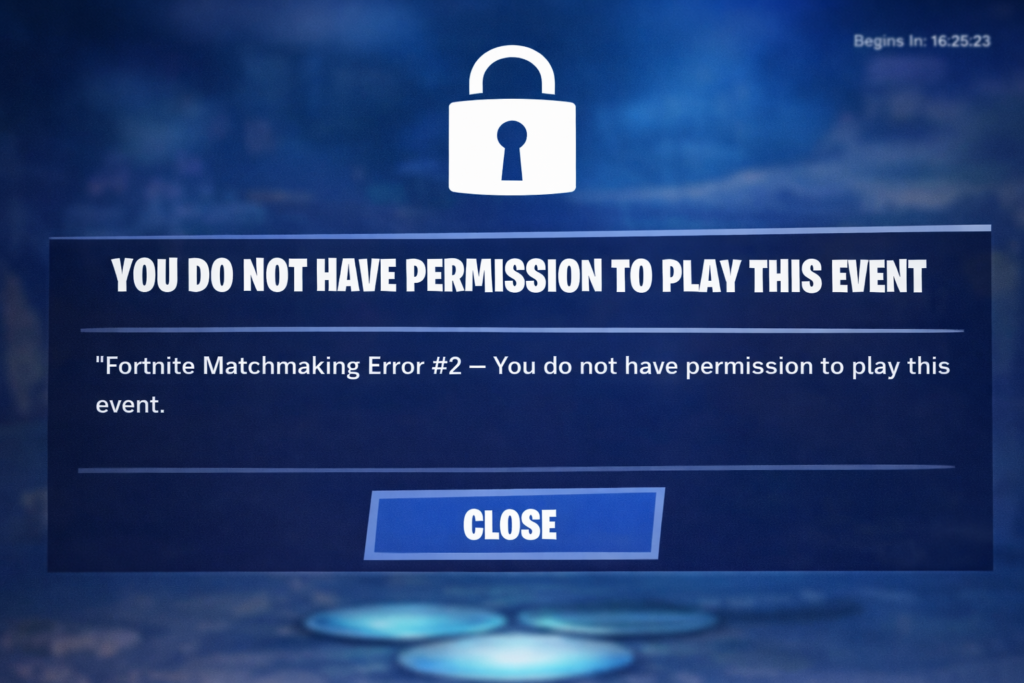
- Error #2 usually points to backend service communication trouble, unless the message mentions permissions or locked competitive content.
- Error #3 usually appears when matchmaking is crowded, limited, or temporarily unavailable.
The fastest fix order
From Scrolllers.net’s perspective, the smartest order is simple:
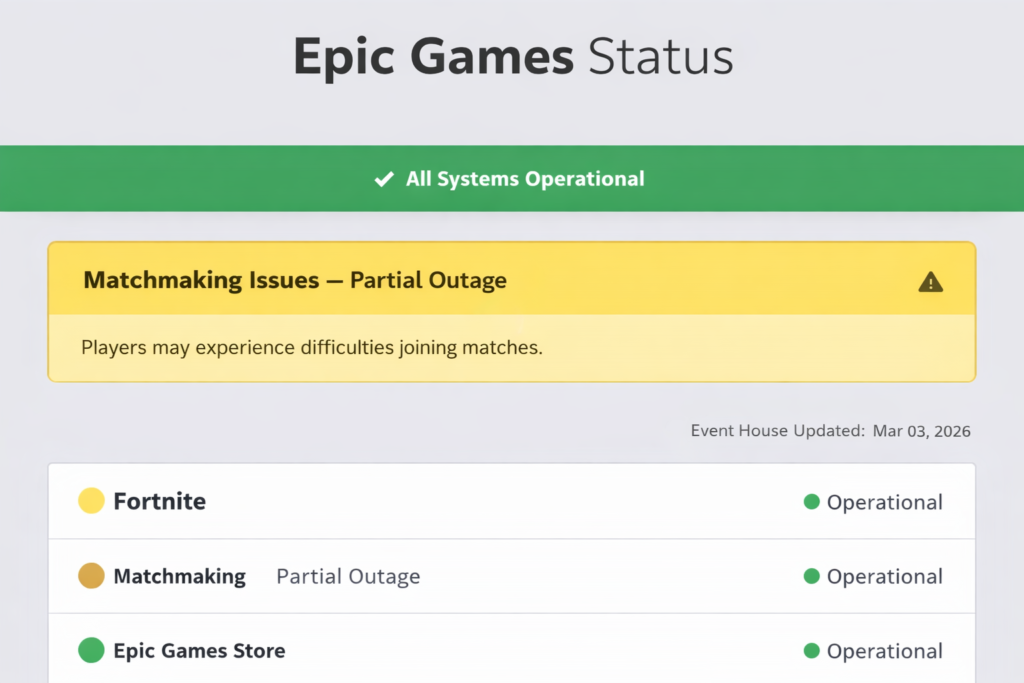
- Check Epic Games Status.
- Restart Fortnite.
- Wait a few minutes and queue again.
- Restart your router and device.
- Switch to a wired connection or stronger Wi-Fi.
- Flush DNS or change DNS on PC.
- Disable proxy or background network-heavy apps.
- Double-check tournament or playlist eligibility if the error mentions permissions.
That order saves time because many Fortnite matchmaking errors are not caused by corrupted files or broken installs. They are often caused by Epic-side maintenance, heavy queue pressure, or unstable routing between your device and Epic’s services.
Why This Error Is So Common in 2026
This year alone, Epic’s public status history has already shown real matchmaking disruption patterns. On March 2, 2026, Epic investigated matchmaking issues affecting the Middle East region. Then, for the v39.51 update, Epic scheduled downtime and said matchmaking would be disabled 30 minutes prior. During separate Epic Online Services maintenance, Epic also warned of up to 3 hours of degraded availability, with searching and matchmaking temporarily unavailable. That context matters because Fortnite Matchmaking Error is often not your fault at all.
Network quality also plays a big role once Epic’s servers are up. As AT&T Business notes, “A ping rate under 50 ms is fantastic” for gaming. In other words, even if Fortnite is operational, unstable routing, high latency, or packet loss can still trigger a Fortnite Matchmaking Error during queue or session join attempts.
How to Fix Fortnite Matchmaking Error #1
Fortnite Matchmaking Error #1 usually means Fortnite could not connect to the match instance. Start with the basics because they solve most cases. First, open Epic Games Status and check whether Matchmaking or related services are degraded. If they are, wait. Do not keep spamming Ready. That rarely helps.
If the status page looks normal, fully close Fortnite and relaunch it. Then restart your PC, PlayStation, Xbox, Switch, or mobile device. After that, reboot your modem and router. Epic’s support guidance for server connection issues specifically recommends checking for outages, contacting your ISP if needed, and rebooting your router.
Next, improve the connection path. Epic recommends a wired Ethernet connection when possible, because Wi-Fi can introduce signal loss. If you stay on Wi-Fi, test both 2.4 GHz and 5 GHz. Also move closer to the router and update router firmware if available.
If Fortnite Matchmaking Error #1 keeps returning on PC, try network cleanup steps from Epic’s support stack: switch to public DNS, flush DNS, reset the Windows Hosts file, clear cache, disable proxy settings, and close background apps that can interfere with connectivity. Epic lists those steps directly under its official Matchmaking Error troubleshooting path.
Best fix for Error #1
For most players, the best fix for Fortnite Matchmaking Error #1 is this: check status first, then restart Fortnite and your router, then switch to a more stable connection. That order matches Epic’s own troubleshooting logic.
How to Fix Fortnite Matchmaking Error #2
Fortnite Matchmaking Error #2 has two different paths, so you need to identify which one you have.
Error #2: “Trouble connecting to content beacon service”
This version of Fortnite Matchmaking Error #2 is usually a backend communication problem. Start the same way: check Epic Games Status, wait a few minutes, then relaunch Fortnite. If the servers are healthy, move on to your connection. Epic’s official page ties these errors to either maintenance or network issues.
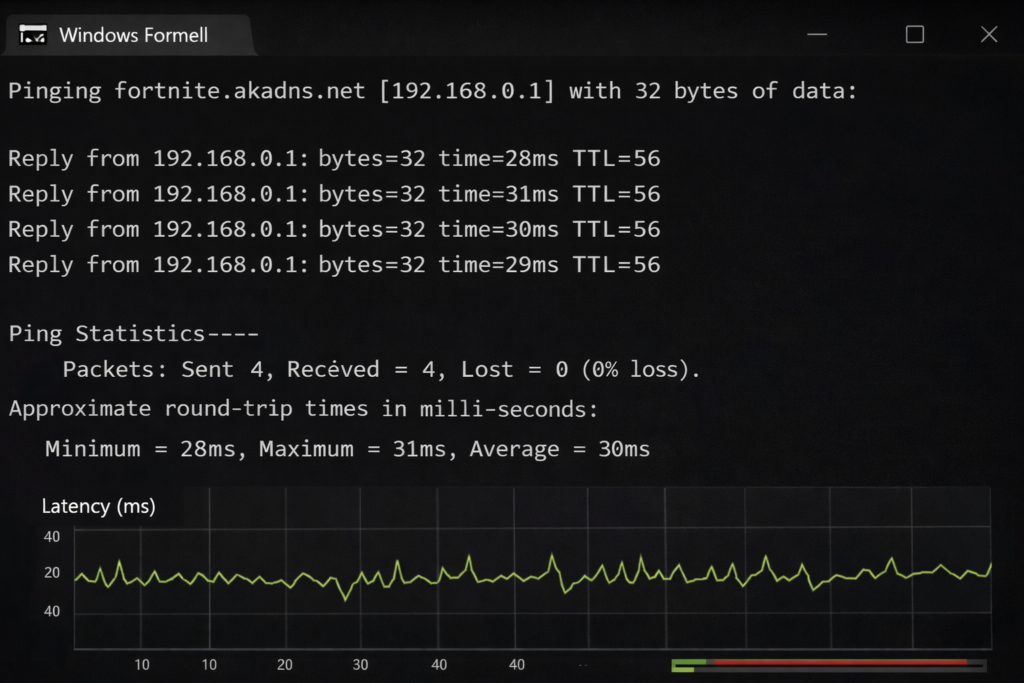
After that, test your latency. Epic provides region-specific ping targets such as ping-nae.ds.on.epicgames.com, ping-eu.ds.on.epicgames.com, and ping-me.ds.on.epicgames.com.
You can check your ping to Fortnite data centers:
- NA-East: ping-nae.ds.on.epicgames.com
- NA-Central: ping-nac.ds.on.epicgames.com
- NA-West: ping-naw.ds.on.epicgames.com
- Europe: ping-eu.ds.on.epicgames.com
- Oceania: ping-oce.ds.on.epicgames.com
- Brazil: ping-br.ds.on.epicgames.com
- Asia: ping-asia.ds.on.epicgames.com
- Middle East: ping-me.ds.on.epicgames.com
If your ping is unstable or very high, your ISP routing may be the real cause. Epic says sudden ping spikes are often related to the path your ISP uses across internet exchange points.
Error #2: “You don’t have permission to play this content”
This version is different. It usually means you tried to join a competitive event or playlist without meeting the requirements. Epic says that when a tournament shows a lock icon, the event may not have started yet, or your account may not be eligible. So this Fortnite Matchmaking Error is not always a network problem.
Best fix for Error #2
If Fortnite Matchmaking Error #2 mentions content beacon, treat it like a network or server issue. If it mentions permission, check your tournament eligibility, region, rank, age, account status, and whether the event has actually started.
How to Fix Fortnite Matchmaking Error #3
Fortnite Matchmaking Error #3 is the easiest one to understand. Epic’s wording says the Battle Buses are full. In plain terms, the queue could be full, throttled, or temporarily affected by maintenance. So the first fix is simple: wait a few minutes and try again.
This error also shows up more often around major updates, downtime windows, and busy playlists. Epic’s status history proves that matchmaking can be disabled before maintenance and can also suffer regional issues. Therefore, if Fortnite Matchmaking Error #3 appears during a big patch day, patience is usually the correct fix.
If the status page is clear and the error continues, restart Fortnite, change to a more stable network, and try again later from a less congested region time. Do not change region unless you must, because higher ping can create other problems. Still, if your current region is unstable, testing another nearby region can help diagnose whether the issue is local routing. Epic’s ping endpoints make that test easier.
Platform-Specific Fixes
PC
On PC, Fortnite Matchmaking Error is often solved by flushing DNS, using public DNS, disabling a proxy, resetting the Hosts file, and closing background apps. Epic links all of these steps from its official matchmaking support flow.
PS5, PS4, Xbox, and Switch
On console, restart the game, power cycle the system, clear cache, and reboot your router. Then re-test on a different network if possible. If the error disappears on mobile hotspot or another connection, the problem is likely your home network or ISP path. Epic’s connection guidance points to router restarts and ISP issues as common causes.
Mobile
On mobile, switch between Wi-Fi and cellular to isolate the issue. If Fortnite Matchmaking Error vanishes on one connection but not the other, the problem is likely routing, DNS, or local Wi-Fi interference rather than your Fortnite account.
When You Should Stop Troubleshooting
If Fortnite Matchmaking Error continues after you have:
- checked Epic status,
- restarted the game and router,
- tested another network,
- cleared cache,
- flushed DNS,
- disabled proxy or background apps, and
- confirmed you are eligible for the playlist,
then it is time to submit a Fortnite bug report. Epic’s own support page points players to the in-game bug report flow if the issue persists.
Final Verdict
From Scrolllers.net’s perspective, Fortnite Matchmaking Error #1, #2, and #3 are rarely random. Most cases fall into three buckets: Epic-side maintenance, overloaded matchmaking, or player-side connection trouble. Error #2 can also be a permissions issue, which is why the exact wording matters.
The smartest fix order is still the same: check Epic first, restart Fortnite second, and troubleshoot your network third. That order is faster, cleaner, and far more useful than jumping straight to drastic fixes.
Fortnite’s update cadence in 2026 makes this worth remembering, because every major patch, regional incident, or backend maintenance window can bring another wave of matchmaking complaints even for players with perfect setups
Frequently Asked Questions – FAQs
What is Fortnite Matchmaking Error #1?
Fortnite Matchmaking Error #1 means the game could not connect you to the match. Epic says it is usually caused by maintenance or a connection issue.
What is Fortnite Matchmaking Error #2?
Fortnite Matchmaking Error #2 can mean Fortnite could not connect to the content beacon service, or that you do not have permission to enter that content, especially in competitive modes.
What is Fortnite Matchmaking Error #3?
Fortnite Matchmaking Error #3 means the queue is effectively full or unavailable. Epic’s wording says all the Battle Buses are full, so waiting and retrying is often the best first step.
Is Fortnite Matchmaking Error caused by Epic servers?
Sometimes, yes. Epic’s official support says these errors are mainly caused by server maintenance or a network connection issue. The status page is the first thing to check.
How do I fix Fortnite Matchmaking Error fast?
Check Epic Games Status, restart Fortnite, reboot your router, and try again on a stable wired or stronger Wi-Fi connection. If needed, flush DNS, use public DNS, and clear cache.
Why do I get Fortnite Matchmaking Error in tournaments?
If the error says you do not have permission to play the content, Epic indicates you may not meet the event requirements or the tournament may not have started yet.