






Online gaming in 2026 is faster, more competitive, and more demanding than ever. Whether you’re grinding ranked in Fortnite, battling in Call of Duty: Warzone, or climbing competitive ladders in Valorant, lag can destroy your performance.
Lag affects reaction time, movement precision, and overall gameplay experience. Even a small delay can cost you a match.
This complete 2026 guide explains:
- What causes lag in online games
- The difference between lag, ping, and packet loss
- Step-by-step fixes that actually work
- Router, PC, and network optimization tips
- When to contact your ISP
What Is Lag in Online Gaming?
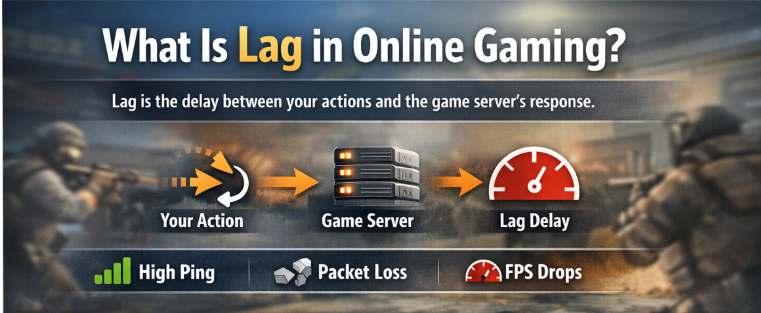
Lag in online gaming is a delay between your action and the game server’s response. In simple terms, when you press a button, move your character, or fire a shot, lag determines how quickly that action registers.
There are three common types:
1. High Ping (Latency)
Ping measures how long it takes data to travel from your device to the game server and back.
| Ping (Latency) Range | Gaming Experience Level | What It Means for Gameplay |
|---|---|---|
| Under 30ms | Excellent | Instant response, smooth gameplay, ideal for competitive gaming |
| 30–60ms | Good | Very minor delay, stable performance for most online games |
| 60–100ms | Playable | Noticeable delay in fast-paced games, still manageable |
| 100ms+ | Noticeable Lag | Delayed actions, rubberbanding, poor competitive performance |
Higher ping means delayed shots, delayed movement, and slower response times.
2. Packet Loss
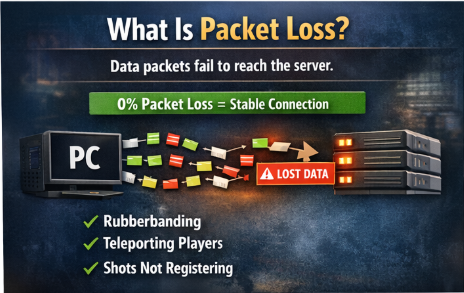
Packet loss happens when small pieces of data (called packets) fail to reach the game server or return to your device.
In online gaming, this causes issues like rubberbanding, delayed hit registration, teleporting players, or sudden disconnections. Even if your ping is low, packet loss can severely impact gameplay because the server is not receiving complete information from your connection.
Symptoms:
- Rubberbanding
- Teleporting players
- Shots not registering
Stable networks should have 0% packet loss. Anything above 1–2% can start affecting competitive performance.
Even with low ping, packet loss can ruin gameplay.
3. FPS Drops (Performance Lag)
FPS drops, also known as performance lag, occur when your system cannot maintain a stable frame rate during gameplay. FPS (Frames Per Second) measures how many images your computer renders per second.
When FPS suddenly drops, gameplay feels choppy, stuttered, or delayed — even if your internet connection is stable. This type of lag is hardware-related and usually caused by:
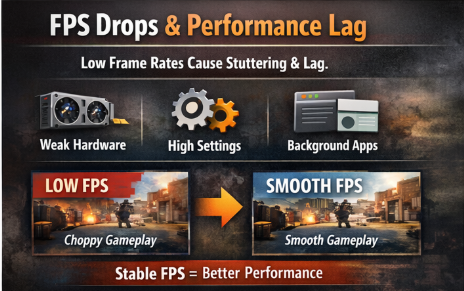
- Weak GPU or CPU performance
- High graphics settings
- Background applications consuming resources
- Outdated drivers
For smooth competitive gaming, maintaining a stable FPS (ideally 60+ or 120+ for competitive titles) is more important than pushing ultra graphics settings. Stability always matters more than maximum visual quality.
Read More: How Pro Players Optimize Their Inventory & Trade CSGO Skins in 2026
Step-by-Step: How to Reduce Lag in Online Games
1. Use a Wired Ethernet Connection
Wi-Fi is convenient but unstable for competitive gaming.
Why Ethernet is better:
- Lower latency
- Reduced interference
- Stable packet delivery
- More consistent ping
If possible, connect your PC or console directly to your router using a CAT6 cable.
This single change can reduce lag dramatically.
2. Restart and Optimize Your Router
Routers accumulate memory overload over time.
Try this:
- Turn off router for 5 minutes.
- Power it back on.
- Test your ping again.
For long-term optimization:
- Update router firmware
- Enable Quality of Service (QoS)
- Prioritize your gaming device
QoS allows you to give your gaming traffic priority over streaming or downloads.
3. Close Background Applications
Many programs use bandwidth silently:
- Cloud syncing services
- Windows updates
- Browser downloads
- Streaming platforms
Before gaming:
- Close unnecessary apps
- Pause updates
- Disable background downloads
Open Task Manager and check for high network usage.
4. Choose the Closest Game Server
Most modern games allow server region selection.
Always choose:
- The geographically closest server
- The lowest ping server in settings
For example, if you’re in Asia, don’t connect to Europe servers.
Distance directly affects latency.
5. Upgrade Your Internet Plan (If Necessary)
Recommended speeds for online gaming:
- Minimum: 25 Mbps download
- Ideal: 50–100 Mbps
- Stable upload: At least 5–10 Mbps
Speed isn’t everything — stability matters more.
Scrolllers.net
If your connection drops frequently, contact your ISP and ask about:
- Fiber connection
- Reduced jitter
- Static IP option
6. Optimize Windows 11 for Gaming
If you’re on PC:
- Enable Game Mode
- Disable background startup apps
- Update network drivers
- Turn off unnecessary overlays
Also:
Go to:
Settings → Network & Internet → Advanced → Disable Metered Connection (if enabled)
This ensures your connection runs without artificial throttling.
7. Fix DNS Issues
Sometimes your ISP’s default DNS causes delays.
Switch to a faster DNS:
- Google DNS: 8.8.8.8 / 8.8.4.4
- Cloudflare DNS: 1.1.1.1
To change DNS:
- Open Network Settings
- Go to Adapter Properties
- Edit IPv4 settings
- Enter custom DNS
Restart PC and test ping again.
8. Reduce Network Congestion at Home
If multiple devices are:
- Streaming Netflix
- Downloading games
- Uploading large files
Your bandwidth gets split.
Solutions:
- Schedule downloads outside gaming hours
- Use router QoS
- Upgrade to dual-band or Wi-Fi 6 router
Competitive gaming requires network priority.
9. Check for ISP Throttling
Some ISPs throttle gaming traffic during peak hours.
Signs:
- High ping only at night
- Lag despite good speed tests
- Better performance with VPN
If confirmed, contact ISP and ask about traffic management policies.
10. Upgrade Outdated Hardware
Sometimes lag is hardware-related.
Consider upgrading:
- Old routers (5+ years)
- Weak Wi-Fi adapters
- Damaged Ethernet cables
- Entry-level modems
Modern gaming routers reduce latency spikes significantly.
Advanced Tips to Reduce Lag Further
Enable NAT Type Open
Strict NAT can cause connection issues.
On console or PC:
- Enable UPnP in router settings
- Forward necessary ports
- Restart router
Open NAT improves connection stability.
Reduce In-Game Graphics Settings (For FPS Lag)
If lag is FPS-related:
- Lower shadows
- Disable motion blur
- Reduce render scale
- Lower anti-aliasing
Higher FPS = smoother experience.
Aim for stable FPS over maximum graphics.
Use a Gaming VPN (Only If Necessary)
A VPN can:
- Route traffic through less congested paths
- Reduce ISP throttling
However:
- It may increase ping if server is far
- Choose nearest VPN location
Test before committing.
Common Causes of Gaming Lag in 2026
Understanding causes helps prevent recurrence:
- Outdated routers
- ISP congestion
- Background downloads
- Wi-Fi interference
- Server overload
- Poor DNS routing
Lag is rarely random. There is almost always a technical cause.
When to Contact Your ISP
Contact your provider if:
- Ping spikes constantly
- Packet loss exceeds 2–3%
- Speed is significantly lower than plan
- Connection drops during peak hours
Ask specifically about:
- Line stability
- Fiber availability
- Network congestion in your area
Document speed test results before calling.
Final Thoughts: The Smart Way to Reduce Lag
Reducing lag in online games requires:
- Stable wired connection
- Router optimization
- Clean background system
- Proper DNS configuration
- Smart bandwidth management
Competitive players treat network stability seriously because milliseconds matter.
You don’t need expensive upgrades immediately. Start with:
- Ethernet connection
- Router restart + QoS
- Close background apps
- Choose nearest server
These four steps alone solve most lag issues.
Frequently Asked Questions
Does higher internet speed reduce lag?
Not always. Stability and latency matter more than raw speed.
Is Wi-Fi bad for gaming?
It works, but Ethernet is more reliable and lower latency.
Can lag be caused by the game server?
Yes. Sometimes server overload causes temporary spikes.
Conclusion
Lag is one of the biggest performance killers in online gaming. But in 2026, most lag issues are fixable with proper setup and awareness.
By optimizing your connection, router, and system settings, you can significantly improve responsiveness and competitive performance.
Serious gamers optimize their network the same way they optimize their settings — with precision and discipline.