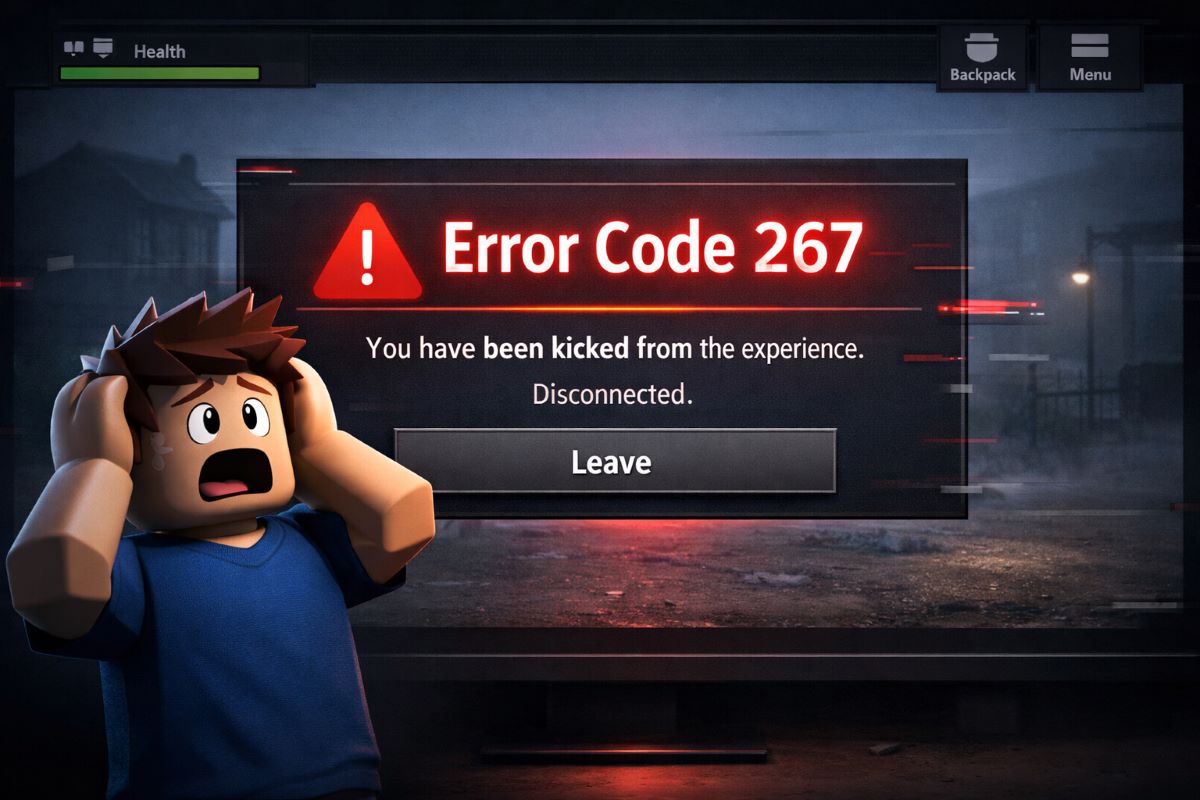

Roblox keeps crashing on your PC for no reason? You open the game, everything seems fine, and suddenly it closes or freezes. It is frustrating, especially when you are in the middle of a game.
You are not alone. Many players face this issue where Roblox crashes randomly, freezes during gameplay, or does not even open properly, similar to issues seen in other popular games like Fortnite, where errors such as matchmaking problems can also disrupt gameplay (Fortnite Servers not Responding). It happens on both low end and high end PCs.
If Roblox keeps crashing repeatedly, it can also affect your overall gaming performance and cause lag spikes. That is why fixing the root cause is important instead of relying on temporary solutions.
The good news is that this problem can be fixed. In this guide, you will learn simple and working methods to stop Roblox from crashing on PC.
Table of Contents
Quick Fix Summary If Roblox Keeps Crashing
If you are in a hurry, try these quick fixes first:
- Update your graphics drivers (Most Effective)
- Clear Roblox cache files (Fixes random crashes)
- Close unnecessary background apps
- Lower Roblox graphics settings
- Reinstall Roblox
- Disable fullscreen optimization
- Update Windows
These fixes are tested on multiple PCs and work for most Roblox crashing, freezing, and startup issues in 2026.
Most users fix Roblox crashes by updating drivers and clearing cache.
Why Does Roblox Keeps Crashing on PC
Roblox crashing issues can vary depending on your system configuration. Some users experience Roblox crashing on startup, while others face freezing during gameplay or high CPU usage. These problems are commonly linked to outdated drivers, corrupted cache files, or system compatibility issues in Windows 10 and 11.
Before fixing the issue, it helps to understand why it happens.
Roblox may crash due to:
- Outdated graphics drivers
- Too many background applications
- Corrupted cache files
- High graphics settings
- Windows compatibility issues
- Temporary bugs after updates
System Requirements Check If Roblox Keeps Crashing
If Roblox keeps crashing even after trying basic fixes, your PC might not meet the minimum or recommended system requirements.
Roblox is not a heavy game, but it still needs a stable system to run smoothly without crashes or freezing issues.
Minimum requirements:
- OS: Windows 7 or higher
- Processor: Basic CPU (1.6 GHz or above)
- RAM: At least 2GB
- Graphics: DirectX 10 compatible
Recommended for smooth gameplay:
- RAM: 4GB or more
- SSD storage
- Updated GPU drivers
If your system is below recommended specs, Roblox may keep crashing during gameplay or startup.
In this case:
- Lower graphics settings
- Close all background apps
- Avoid running heavy software while playing
Fix 1 Update Your Graphics Drivers If Roblox Keeps Crashing
Outdated drivers are one of the main reasons Roblox keeps crashing on PCs.
To update your drivers:
Open Device Manager
Click on Display Adapters
Right click your graphics card
Click Update Driver
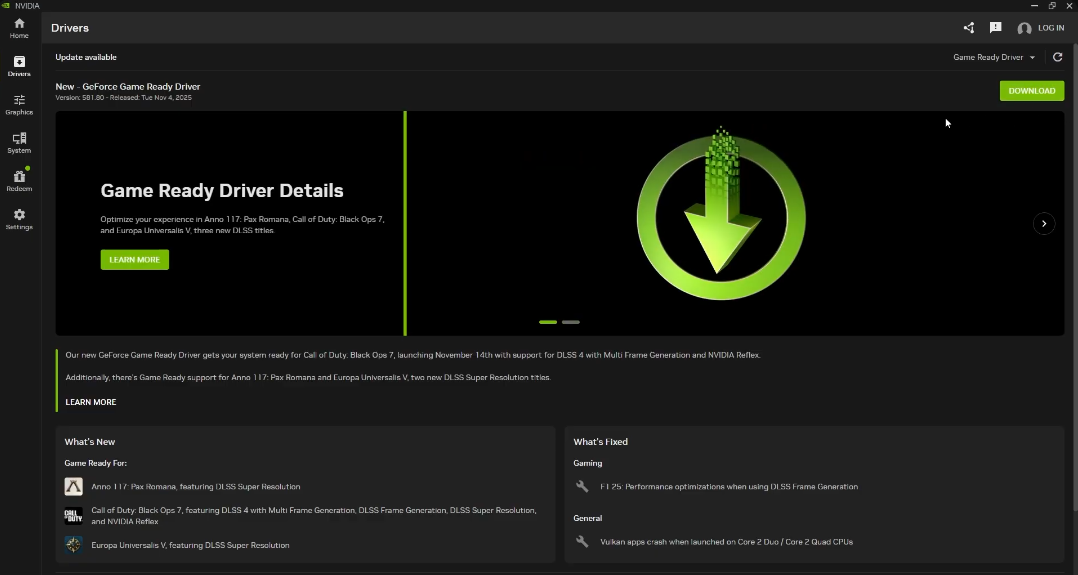
You can also use official software like Nvidia GeForce Experience or AMD Adrenalin for better results.
Fix 2 Close Background Applications If Roblox Keeps Crashing
Too many apps running in the background can overload your system and cause Roblox to crash.
Closing unnecessary programs not only frees up memory but also improves game stability, similar to optimizing your setup for smoother gameplay in mobile shooters, as explained in our BGMI review 2026.
To fix this:
Press Ctrl Shift Esc
Open Task Manager
Close apps like Chrome, Discord, or recording software
This frees up memory and improves stability.
Fix 3 Lower Roblox Graphics Settings
High graphics settings can cause freezing and crashes, especially on mid range systems.
To reduce graphics:
Open Roblox
Go to Settings
Lower graphics to minimum or medium
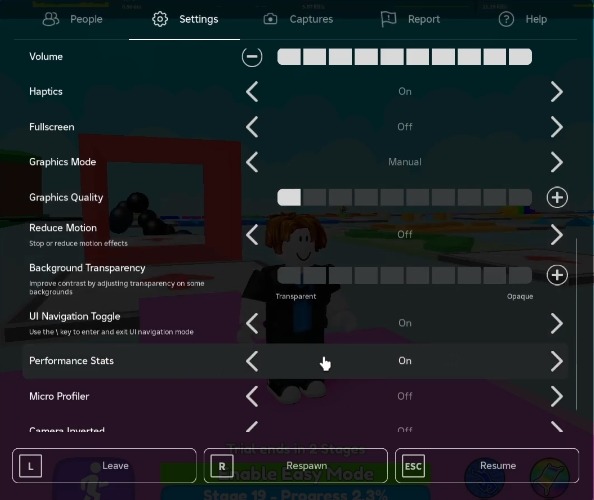
This helps the game run smoother and prevents sudden crashes.
Fix 4 Clear Roblox Cache Files If Roblox Keeps Crashing
Corrupted cache is a hidden reason why Roblox crashes without any error.
To clear cache:
Press Windows plus R
Type local app data and press Enter
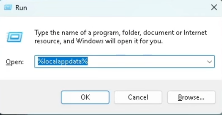
Find the Roblox folder and delete it
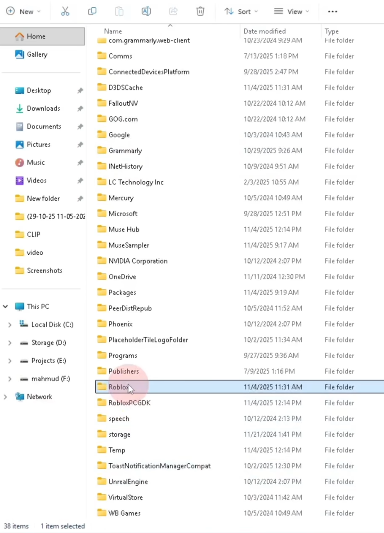
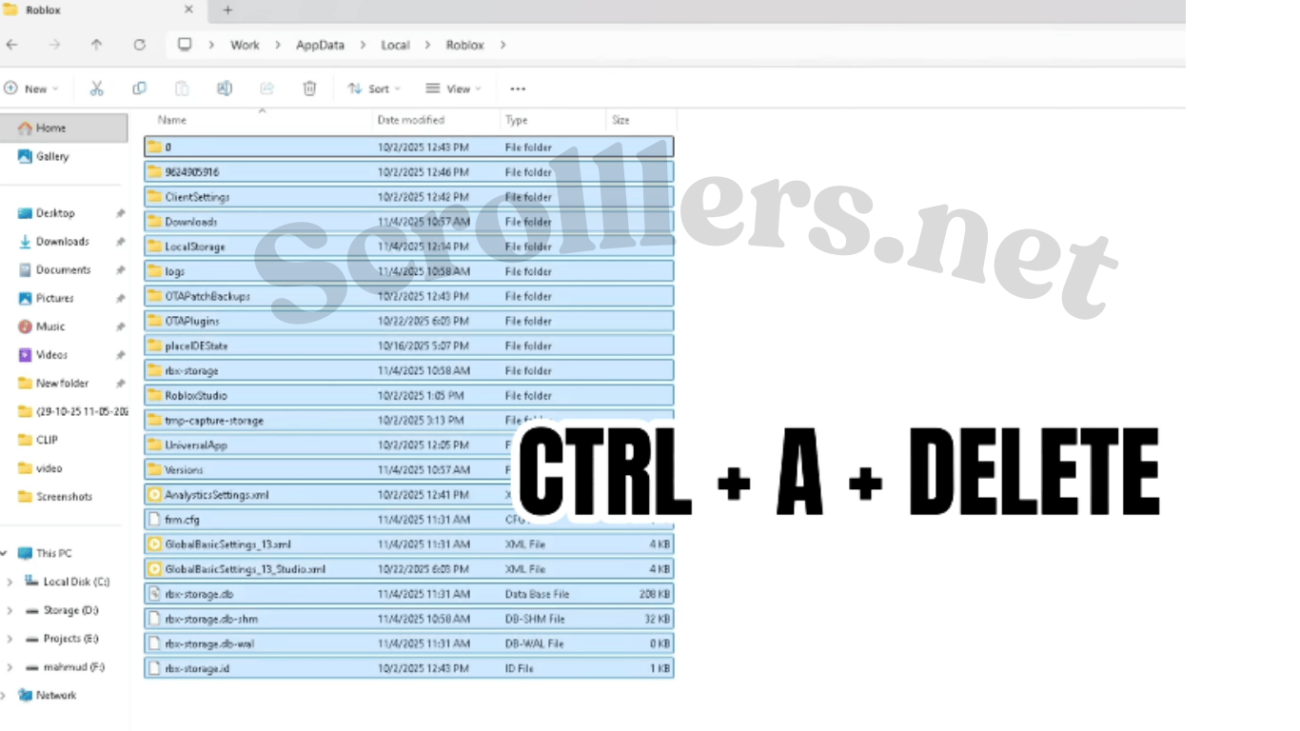
Restart your PC and open Roblox again.
This fix works for many users facing random crashes.
Fix 5 Reinstall Roblox Properly
If Roblox files are damaged, reinstalling is the best solution.
Steps:
Uninstall Roblox from Control Panel
Delete any remaining Roblox files
Download and install it again from the official website
This removes broken files and gives you a fresh setup.
⚠️ Common Mistake
Many users reinstall Roblox without clearing cache first. This keeps the corrupted files and does not fix the issue. Always clear cache before reinstalling.
Fix 6 Disable Fullscreen Optimization
Sometimes Windows optimization conflicts with Roblox.
To disable it:
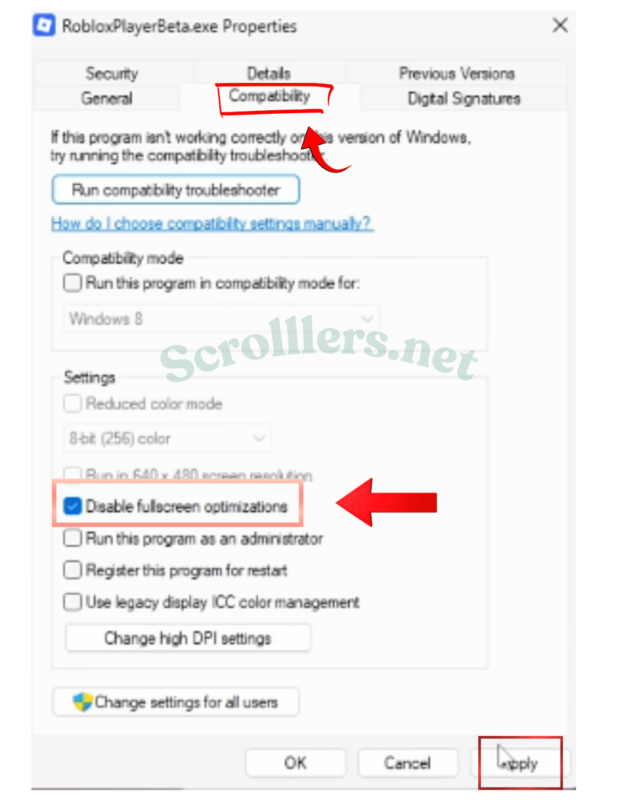
Right click Roblox
Go to Properties
Open Compatibility tab
Enable Disable fullscreen optimization
Apply changes and try running the game again.
Fix 7 Update Windows
Running an outdated version of Windows can cause compatibility issues.
To update:
Open Settings
Go to Windows Update
Install all available updates
Restart your PC and check if the issue is fixed.
Fix 8 Run Roblox as Administrator
Sometimes Roblox keeps crashing due to permission issues in Windows.
Running the game as administrator gives it full access to required system resources.
Steps:
- Right click on Roblox Player
- Click “Run as Administrator”
- Launch the game again
This simple fix often resolves random crashing and startup issues.
Roblox Keeps Crashing Without Any Reason Try This First
If Roblox keeps crashing randomly without showing any error, start with these:
Clear cache
Update drivers
Close background apps
These three steps solve most hidden issues quickly.
Prevent Roblox Crashing Issues in the Future
Fixing the problem is good, but preventing it is even better. If Roblox keeps crashing frequently, follow these long-term tips to avoid issues in the future.
Best practices:
- Keep your graphics drivers updated regularly
- Clear cache files every few weeks
- Avoid installing unknown plugins or mods
- Keep Windows updated
- Do not overload your PC with background apps
Regular maintenance ensures Roblox runs smoothly without crashes or freezing problems.
Extra Tip
If your game is lagging before crashing, check this guide on how to reduce lag in online games.
Frequently Asked Questions (FAQs)
Why does Roblox keep crashing without error?
Roblox crashes without error usually due to corrupted cache, outdated drivers, or background apps interfering with the game. According to Roblox Support, clearing temporary files and ensuring system compatibility can resolve many silent crashes.
Why is Roblox crashing on startup?
Startup crashes are often caused by broken installation files or missing system updates. Reinstalling Roblox and updating Windows can fix most launch-related issues.
Why does Roblox freeze during gameplay?
Freezing happens when your system is overloaded, graphics settings are too high, or the device is overheating. Lowering in-game graphics and closing background apps improves stability. Microsoft also recommends keeping GPU drivers updated for smoother gaming performance.
Is Roblox down today?
Sometimes the issue is from Roblox servers. You can check real-time server status here (Roblox Server Status)
How do I stop Roblox from crashing permanently
Keep your drivers updated, clear cache regularly, and avoid running heavy apps while playing. Regular system maintenance and keeping Roblox updated are key to long-term stability.